 Zed Browser
Keep web video and audio playing in the background
With background playback on, video and audio from web pages keep playing in Zed when you switch to another app or turn off the screen. Control it from the notification and go back to the right tab with one tap.

Free · From Google Play · Phones, tablets and Chromebooks
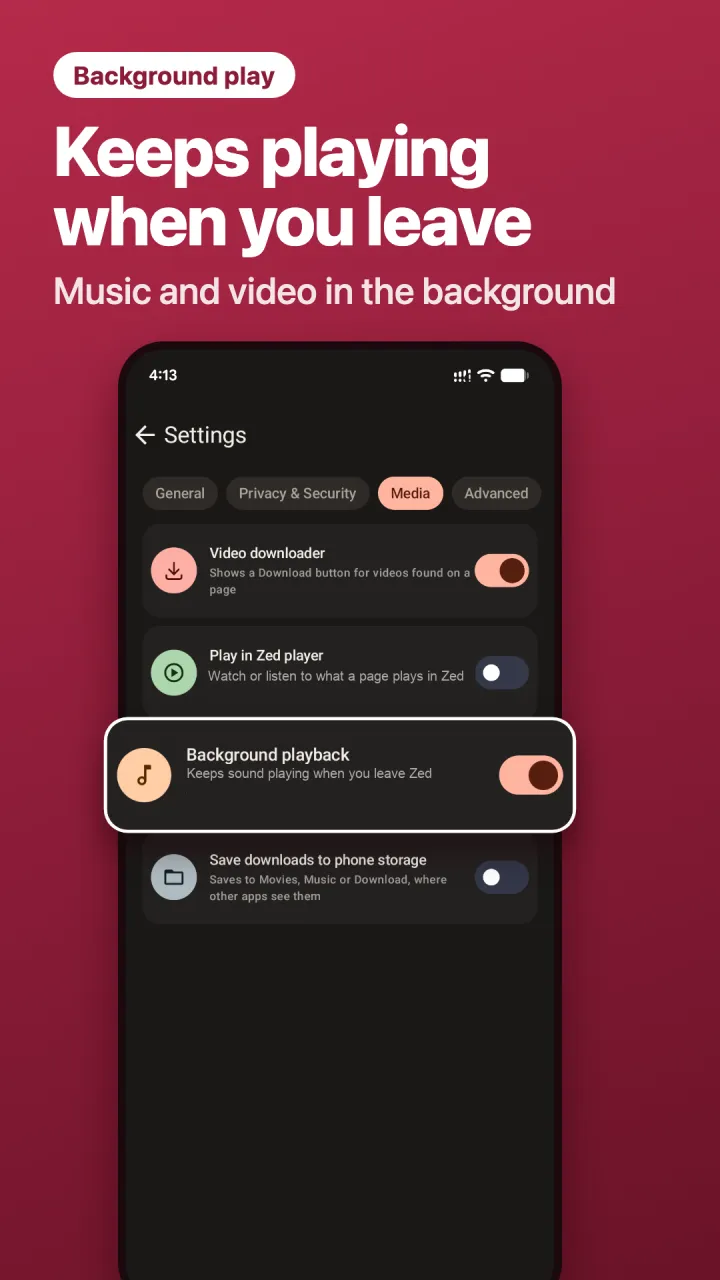
How to turn on background play in Zed
- Open Zed and go to Settings › Media.
- Turn on Background playback.
- Play a video or audio on any page, then leave Zed or lock your phone. It keeps playing.
Audio files you downloaded with Zed always keep playing in the background, even with this setting off.
What you get with background playback
- Notification controls: pause and play from the notification or the lock screen.
- Back to the right tab: tap the notification and Zed opens the tab that's playing.
- You always know what's playing: a speaker mark shows on the playing tab.
- Private on the lock screen: with No history on, the lock screen shows only the site's name.
Why don't some sites keep playing?
Zed tells the page it's still on screen, so most web players keep going. One large video platform keeps background play for its paid plan, and Zed respects that, so its videos pause when you leave.
Questions
Does background play use more battery?
Listening with the screen off uses less battery than watching with it on, because the screen is one of the biggest battery users on a phone.
Can I listen with the screen off?
Yes. Turn on Background playback, start the audio and lock your phone.
Is background play free?
Yes. It's a free setting in Zed.
More media options: Media settings explained